
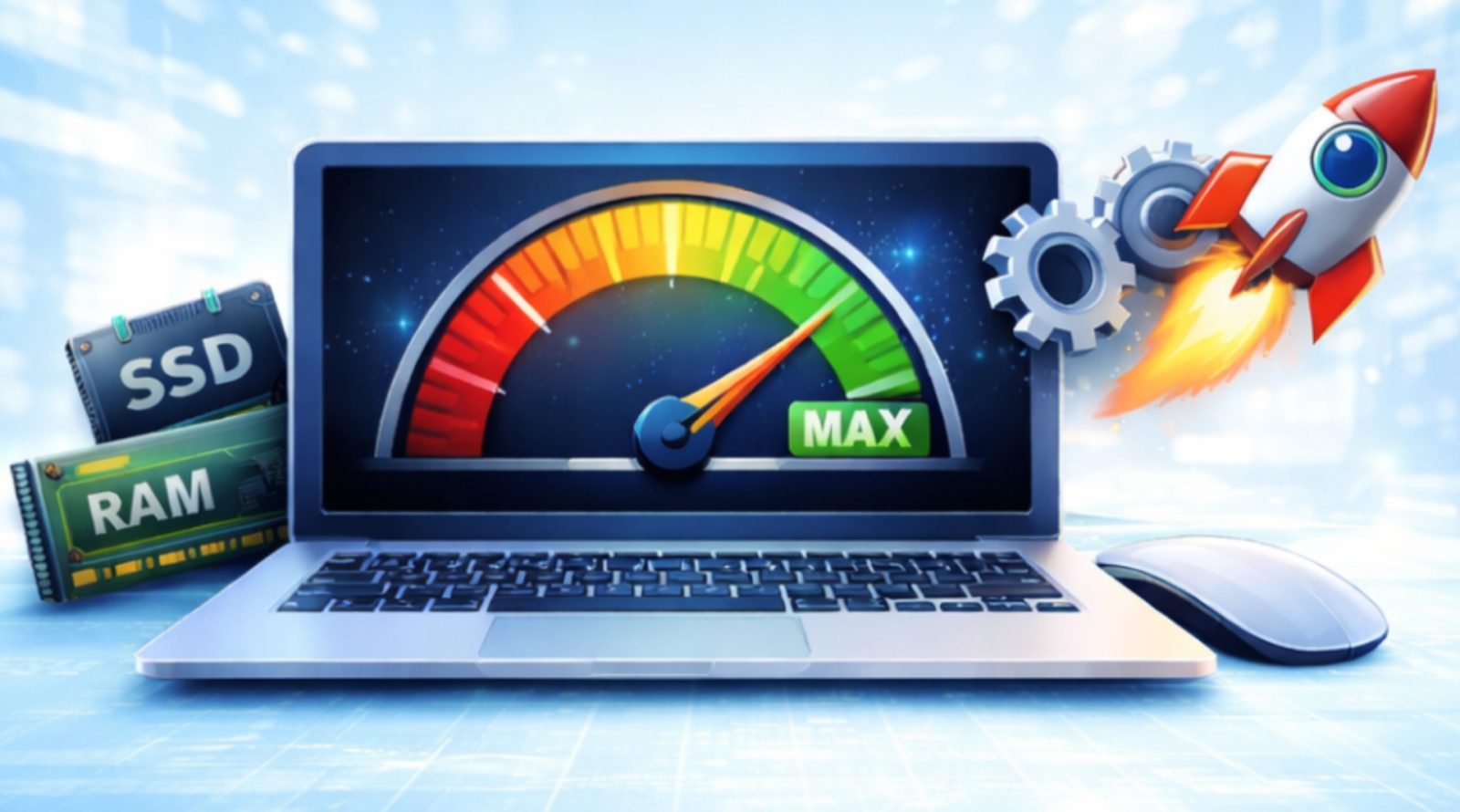
Tips to Improve System Performance for Better Computer Productivity
This article is also available in:
 Arabic
  German
  French
In today’s fast-paced digital world, a slow computer can seriously impact productivity. Whether you’re a developer, designer, student, or office professional, system performance plays a crucial role in how efficiently you work. Fortunately, improving your computer’s performance doesn’t always require expensive hardware upgrades. With the right optimizations and habits, you can significantly boost speed, stability, and overall productivity. Below are practical and effective tips to improve system performance and get the most out of your computer.
1. Remove Unnecessary Startup Programs
Many applications automatically launch when your system starts, consuming memory and processing power.
Why it helps:
Fewer startup programs mean faster boot times and more resources available for important tasks.
What to do:
- Review startup apps using Task Manager (Windows) or Login Items (macOS)
- Disable programs you don’t need immediately after startup
2. Keep Your Operating System Updated
Operating system updates often include performance improvements, bug fixes, and security patches.
Why it helps:
Updates optimize system processes and fix issues that may slow down your computer.
Best practice:
- Enable automatic updates
- Restart your system regularly to apply updates properly
3. Uninstall Unused Applications
Unused software takes up disk space and may run background services without your knowledge.
Why it helps:
Freeing disk space improves read/write speed and system responsiveness.
Tip:
- Periodically audit installed programs
- Remove software you haven’t used in months
4. Manage Disk Space Effectively
A nearly full hard drive can slow down your system significantly.
Why it helps:
Adequate free space allows the system to manage virtual memory and temporary files efficiently.
Actions to take:
- Delete temporary files
- Use disk cleanup tools
- Move large files to external storage or cloud services
5. Upgrade Hardware Strategically
If your system still struggles after software optimization, a small hardware upgrade can make a big difference.
High-impact upgrades:
- RAM: Improves multitasking and application performance
- SSD: Dramatically speeds up boot time and file access
These upgrades are cost-effective and often provide immediate results.
6. Limit Background Processes
Some applications and services continue running even when you’re not actively using them.
Why it helps:
Reducing background activity frees CPU and memory resources.
How to manage:
- Monitor system resource usage
- Close or disable unnecessary background processes
7. Use Lightweight Software Alternatives
Heavier applications consume more system resources, especially on older hardware.
Why it helps:
Lightweight software delivers similar functionality with lower system impact.
Example:
- Use lighter code editors, browsers, or media players when possible
8. Scan for Malware and Security Threats
Malware can significantly degrade system performance while posing security risks.
Why it helps:
Removing malicious software restores system speed and stability.
Recommendation:
- Use a reliable antivirus tool
- Perform regular scans
9. Adjust Visual Effects for Performance
Modern operating systems include visual animations that look great but consume resources.
Why it helps:
Disabling unnecessary animations improves performance, especially on low-end systems.
Tip:
Switch to a “performance” or “best performance” visual setting in system preferences.
10. Restart Your Computer Regularly
Many users keep systems running for weeks without restarting.
Why it helps:
Restarting clears memory, stops unnecessary processes, and refreshes system performance.
Simple habit:
Restart at least once every few days.
Final Thoughts
Improving system performance is not just about speed—it’s about creating a smoother, more productive working environment. By following these tips, you can extend your computer’s lifespan, reduce frustration, and focus more on what truly matters: getting work done efficiently.
Consistent maintenance and smart usage habits go a long way in keeping your system fast, reliable, and productive.